From Part 1 you need: your Pixel ID and access token. Don’t have them? Go back to Part 1 →
2
Step Two
Verify Your Domain & Allow-list Tracking Domains
Step Two
Verify Your Domain & Allow-list Tracking Domains
Two one-time tasks in Meta — both done in Business Settings & Events Manager. They make Meta trust the domains your traffic comes from, so your events are accepted and attributed to you instead of being dropped.
Your tracking domains
Use whichever domain(s) your landing pages & tracking links are served on.
Task 1
Verify the domain — DNS TXT
- Go to Business Settings → Brand Safety → Domains
- Click "Add" and enter your domain
- Choose the "Add a TXT record" verification method
- Copy the
facebook-domain-verificationvalue into your domain's DNS as a TXT record - Back in Meta, click "Verify" (DNS can take a few minutes to propagate)
Task 2
Allow-list domains — Events Manager
- Go to Events Manager → your dataset (the pixel from Step 1)
- Open Settings → "Traffic permissions" (the domain allow list)
- Add each of your tracking domains listed above
- Save — events from those domains are now accepted
Why it matters: Domain verification proves you own the domain, so Meta credits your link-click conversions (and it unlocks Aggregated Event Measurement). The allow list tells Meta which domains may send events to your dataset — without it, events from your landing page & CAPI can be dropped or left unattributed.
3
Step Three
Add Configuration to OnlyFans Pixel
Step Three
Add Configuration to OnlyFans Pixel
Add your pixel credentials to this platform:
- Go to the Settings tab
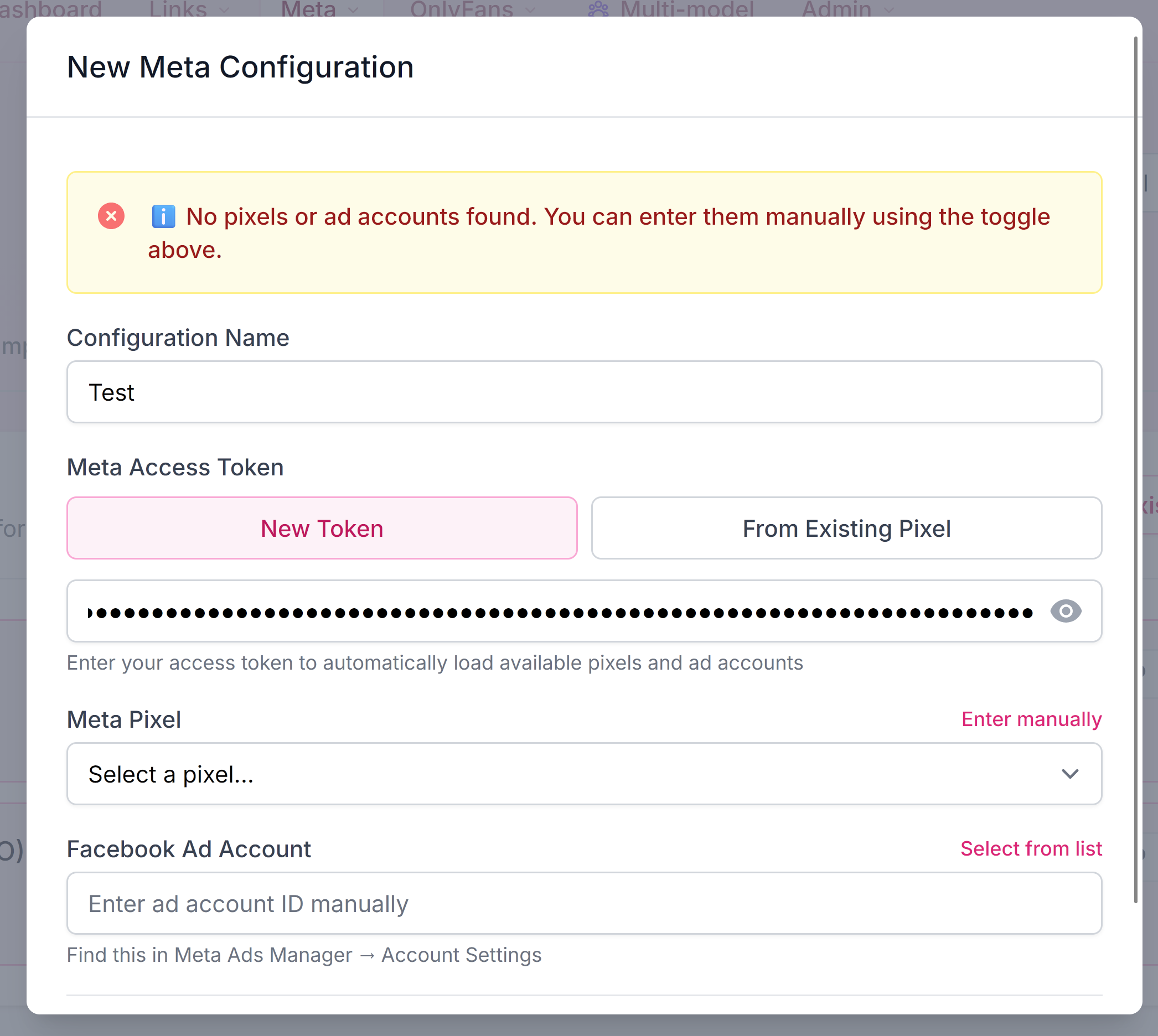
- Click "New Configuration"
- Fill in the form:
- Name: Something descriptive (e.g., "Your Model Main Pixel")
- Access Token: Keep "New Token" selected and paste the access token from step 1.E — OnlyFans Pixel will auto-load your available pixels & ad accounts
- Meta Pixel: Pick the pixel from step 1.A in the dropdown (or use "Enter manually" to paste the Pixel ID)
- Facebook Ad Account: (Optional) "Select from list" or paste manually as
act_123456789
- Click "Save Configuration"
- The configuration will be automatically linked to this creator
Tip: The system will verify your credentials before saving. If you get an error, double-check your Pixel ID and Access Token.
✅ Tracking is live — now run ads
That’s the whole technical setup done. Next guide: launch your first campaign and scale it on ROAS.